A little while ago, I made a video about Linux...

And then, EA took down our freebie Sims 2... Rude.

It was spectacularly bad timing for me when just a few short weeks after releasing this video, EA released The Sims 2 Legacy Edition (which was VERY broken, but it’s better now) and DMCA took down the Sims 2 Starter Pack. 

If you have watched my video recently, you will therefore know that the method I show for installing The Sims 2 is no longer available.

“So, Tea, how do we install The Sims 2 now??”

Never fear, where there’s a will, there’s a way.

There are 3 main methods for installing The Sims 2 onto your Linux system, and I am going to show you those here.

If you haven’t seen my Linux 101 page, where I detail updates and changes to my original video instructions and give some helpful hints and tips, make sure to read through that before installing the game 🙂

If you run into problems with any of the steps, head to my Troubleshooting on Linux page to check for answers.

Option 1: Use the EA App with either Ultimate Collection, or Legacy Edition - Complicated

The hardest part of this method is getting the EA App to correctly download and link to Lutris, so we’ll cover that as step 1 in this process.

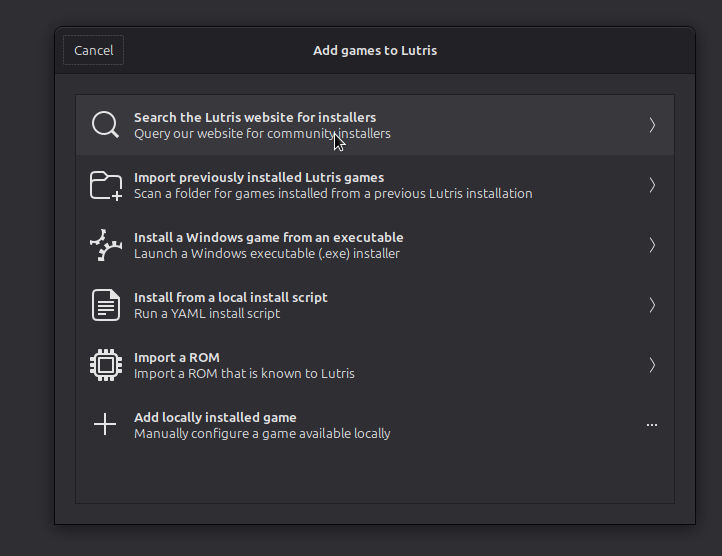
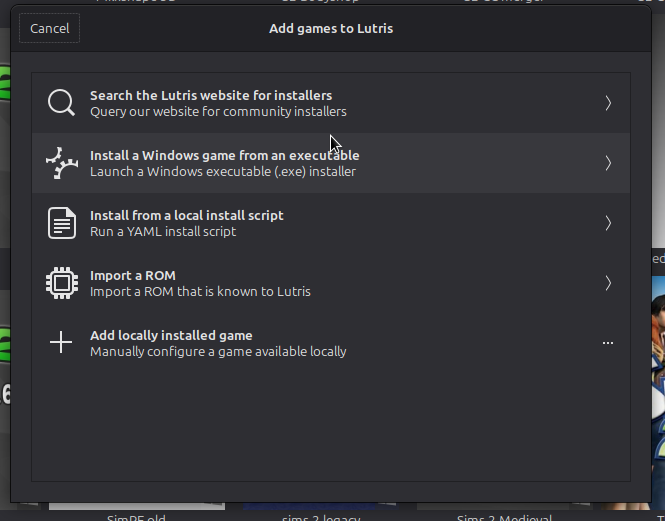
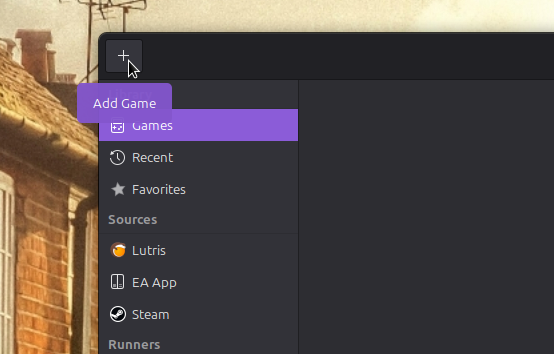
  1. Select the + icon in the top right corner of Lutris and select “Search the Lutris Website for Installers”.
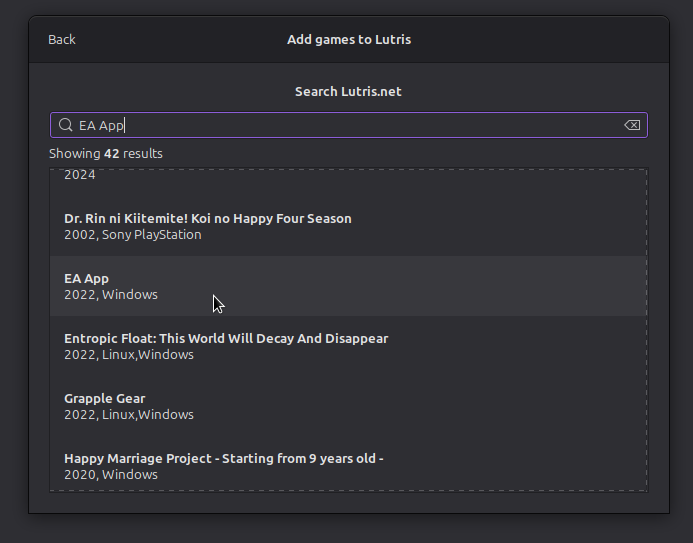
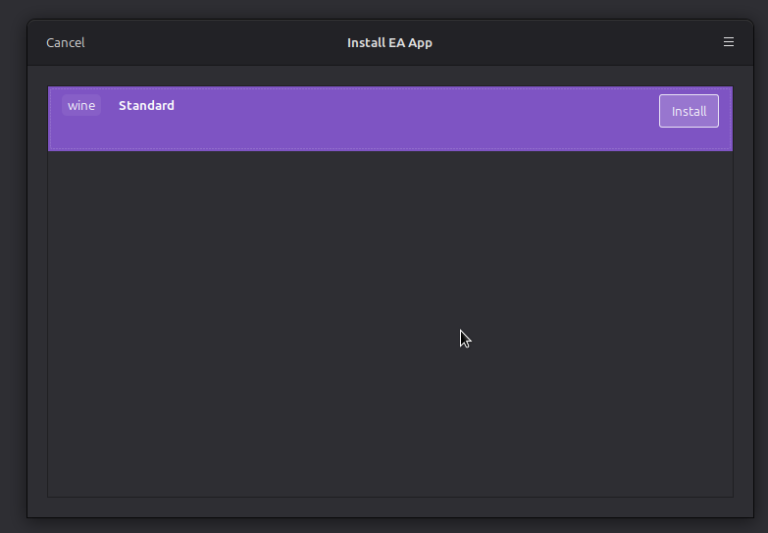
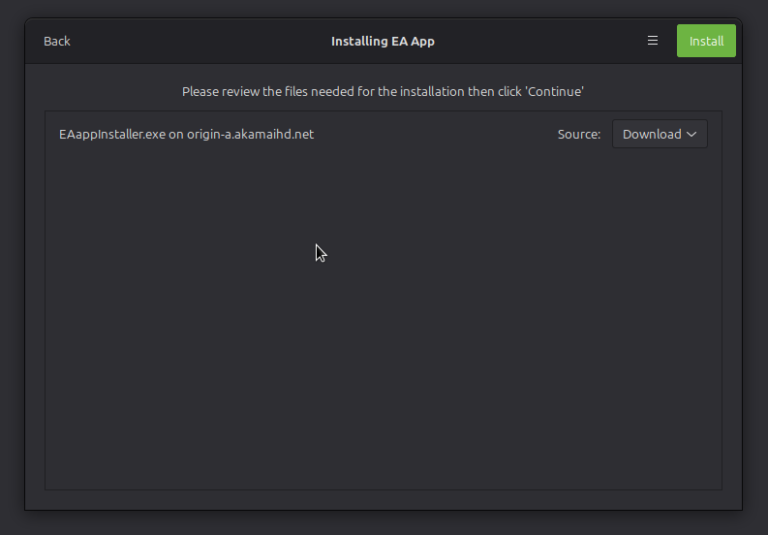
  2. Search for “EA App” and scroll down until you see “EA App” with 2022, Windows under it. Select that, and on the next screen leave all as is and select “Install”
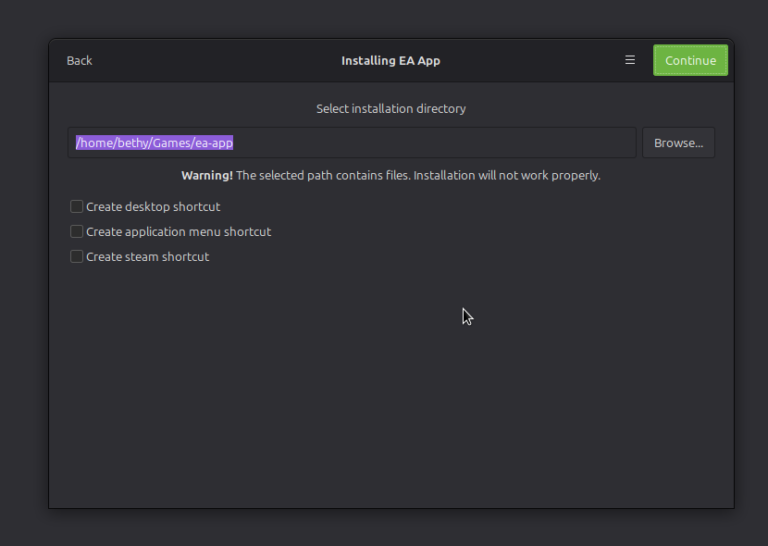
  3. Choose your wine prefix or use the default (by default this will be something like home/username/Games/ea-app) – hit continue, or change to “the sims 2” instead of “ea app”
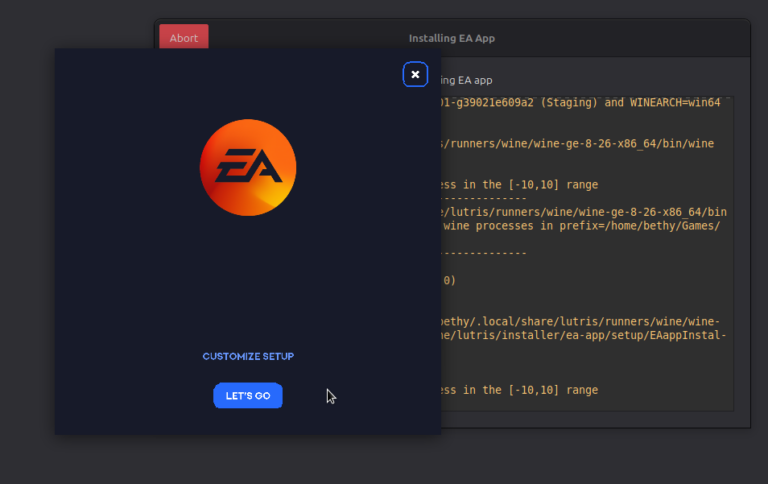
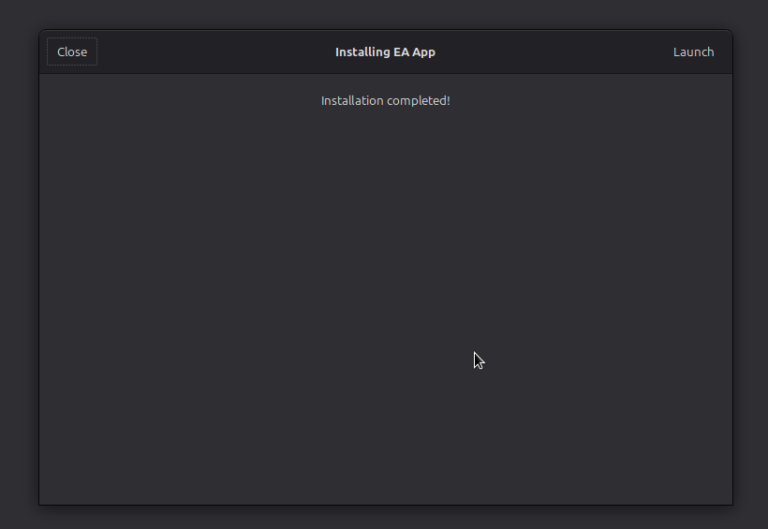
  4. Leave the source as is and select “Install” in the top left corner, allow the installer to run. When it’s finished, an EA app window should open. Select “Let’s Go” and let it load, then close the installer.
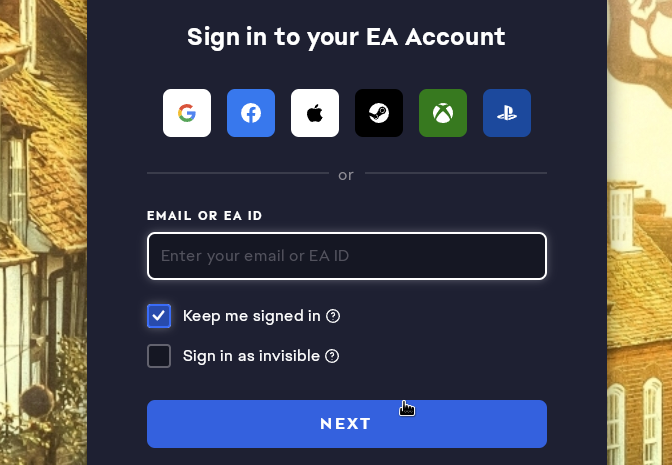
  5. Now, select “EA App” game in your Lutris window Games list and it should open a window prompting you to log in.
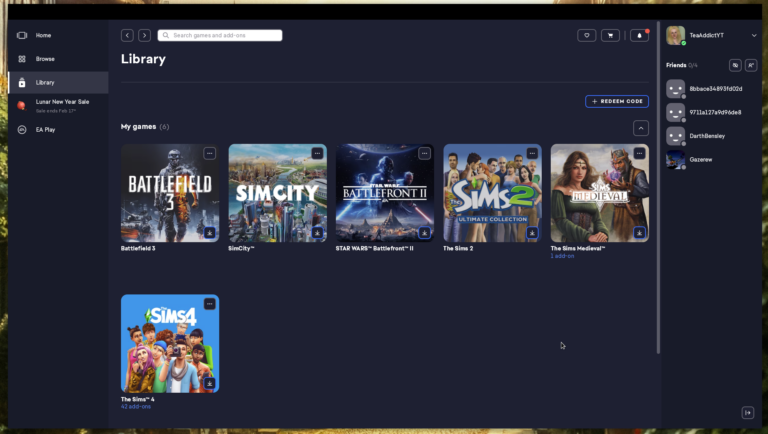
  6. Once logged in, you should be able to access your game library and install the Ultimate Collection, or Legacy Edition.

I have occasionally had problems myself and while helping others wherein the EA App installer will just be empty, broken somehow, or just not install correctly. It’s a pain, but I recommend to check your system for updates, install anything pending, reboot your system, try again, and if it still doesn’t work, wait a few days and then try once more. Usually issues like that get resolved quickly in a Linux space.

Important! If you haven’t visited my page on Windows DLL Components, head there now to install some necessary DLL’s that will help with running the EA App!

Now, go and have a cup of tea and a biscuit!

After installing, continue with some usual Sims 2 setup shenanigans, including:

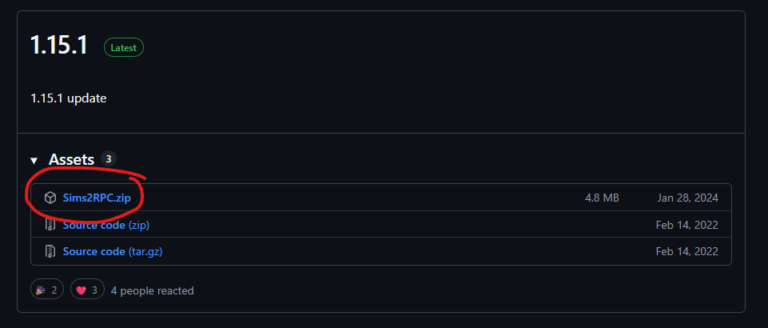
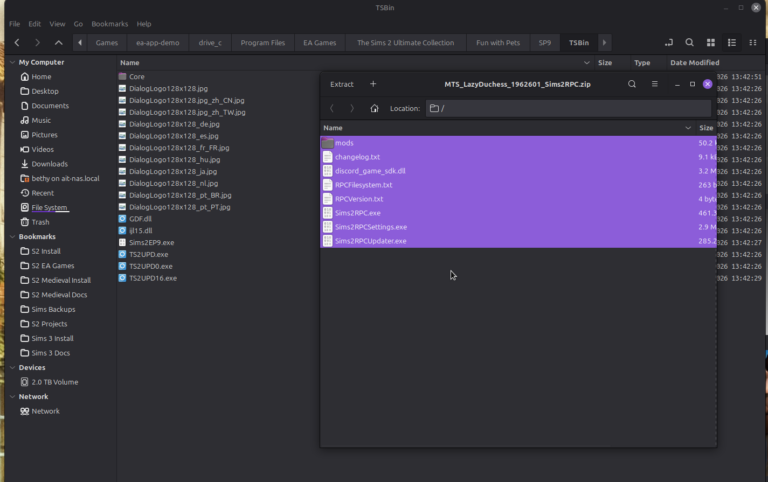
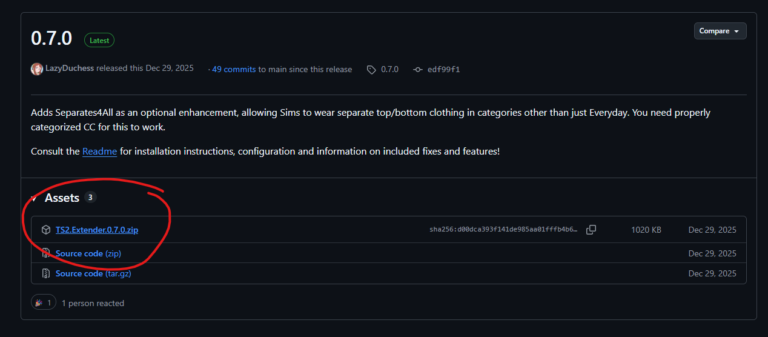
  1. For Ultimate Collection users, get the latest Sims 2 RPC Launcher by Lazy Duchess. Get it from GitHub because those are the latest files and plonk them into your SP9/TSBin folder. This will likely be located in:
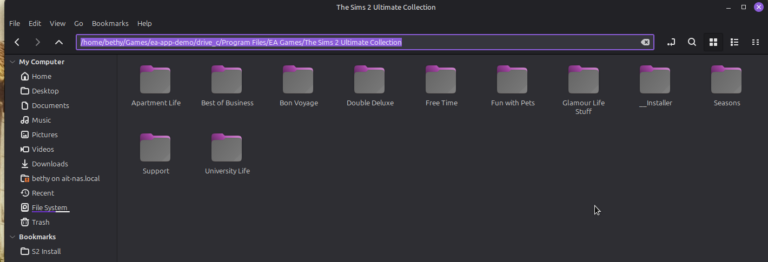
    home/Games/ea-app/drive_c/ProgramFiles/EA Games/The Sims 2 Ultimate Collection/Fun With Pets (Pro-tip: BOOKMARK this folder!)
  2. Move everything from the RPC download into FunWithPets/SP9/TSBin.
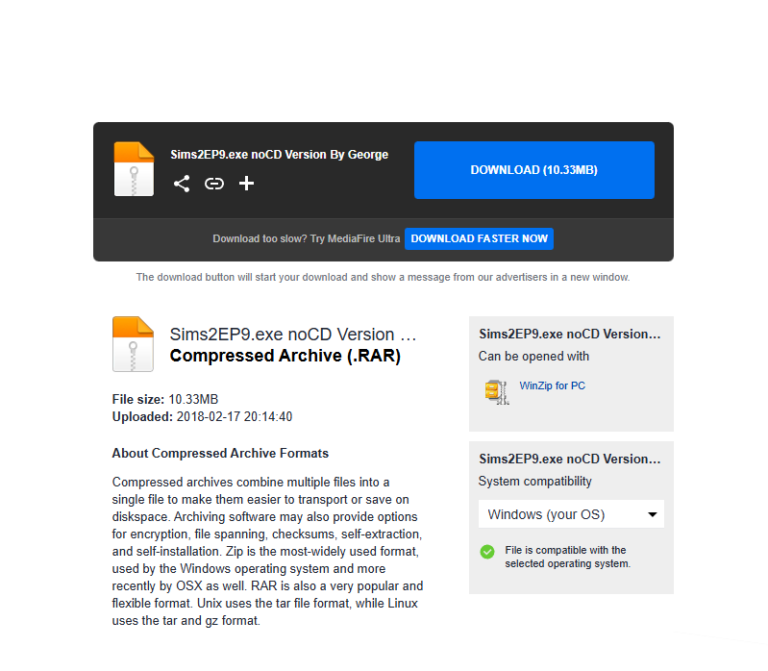
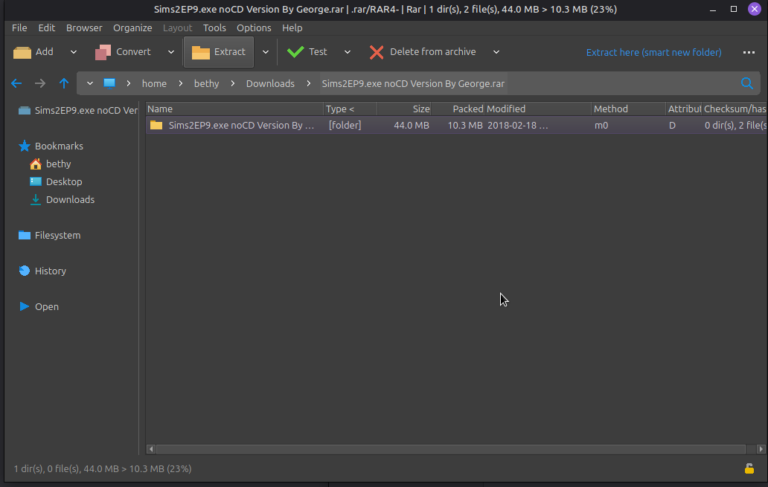
  3. For Ultimate Collection Users, get this “no CD” crack so you can bypass the EA App to launch and use RPC and GRM successfully (more below). Simply extract and overwrite the existing sims2ep9.exe. I am not sure if something like this exists for Legacy Edition, but Google should tell you!
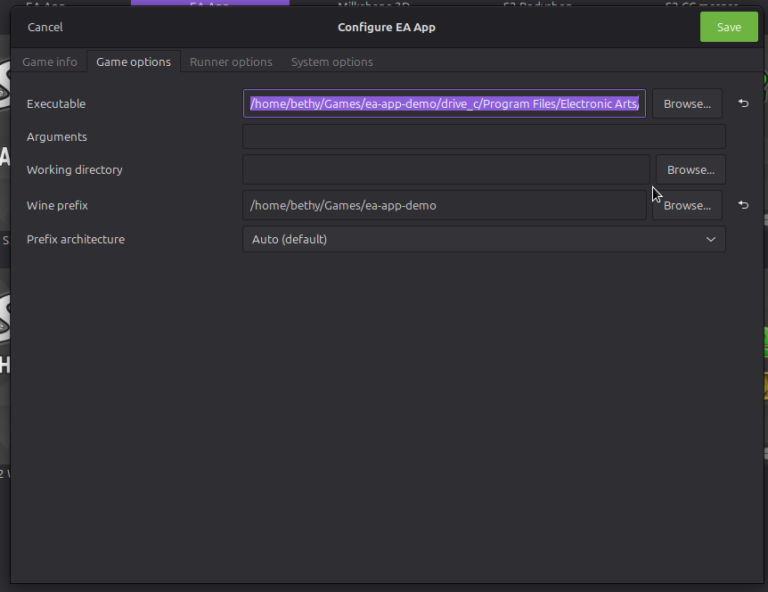
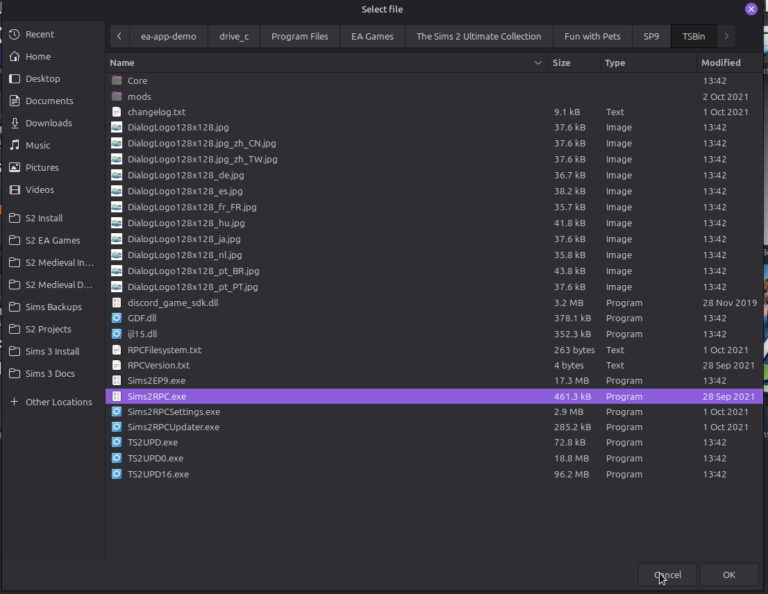
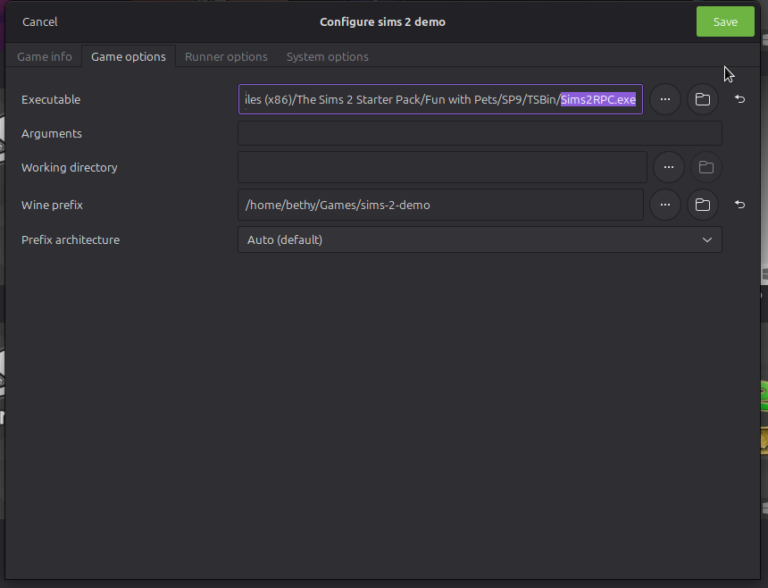
  4. Right-Click on ‘EA App’ in Lutris, select configure, go to the “Game Options” tab, and re-direct the executable path to look for Sims2RPC.exe instead of the EA App Launcher
  5. Don’t worry, we will install Graphics Rules Maker in the next section!


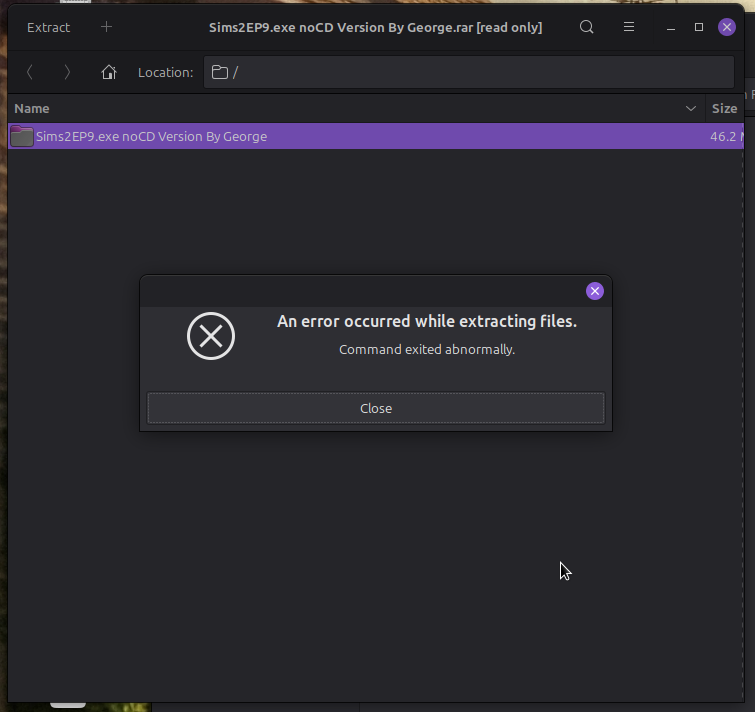
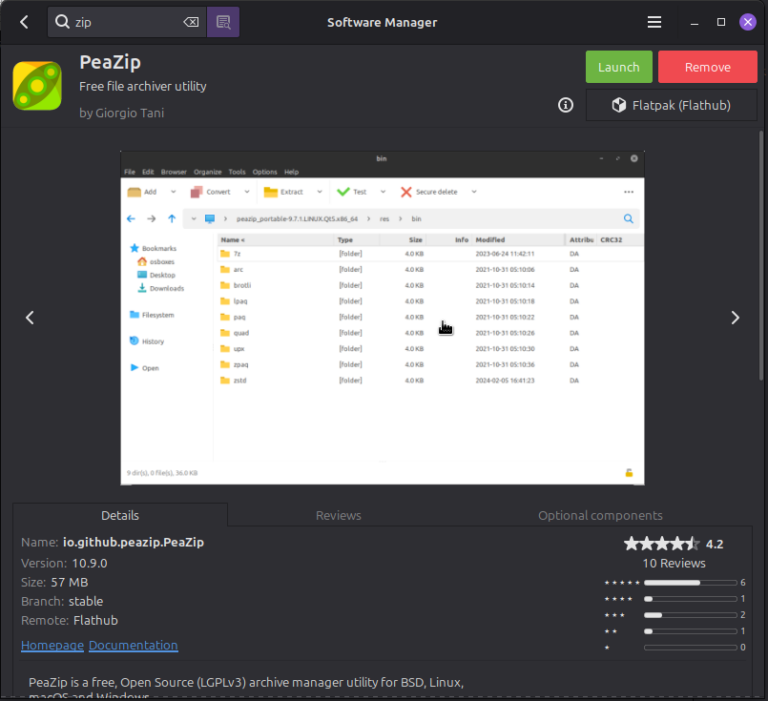
If you have any trouble extracting the “No CD Crack” with the default Linux unzipper, get Peazip from the Software Manager and try with that instead. This is a useful tool to have as a backup on your Linux system in general 🙂

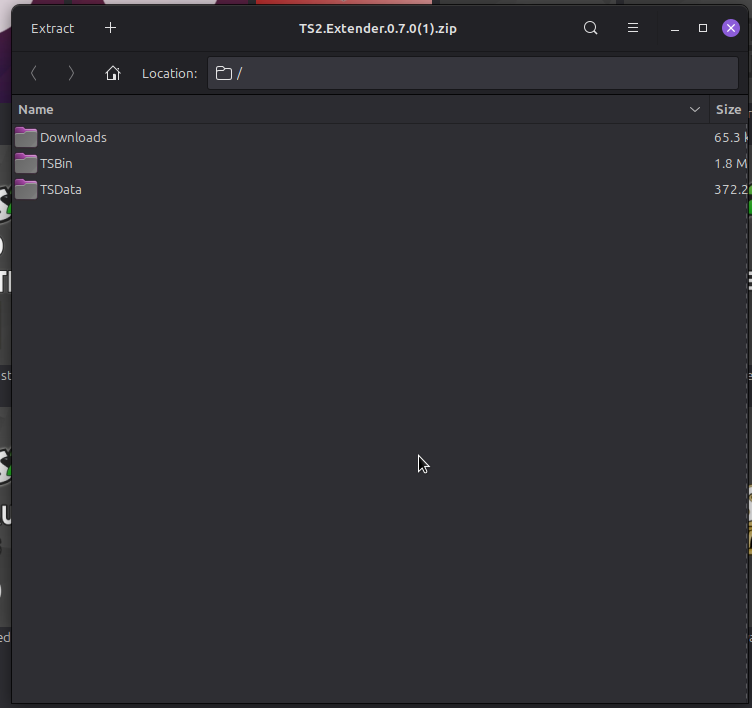
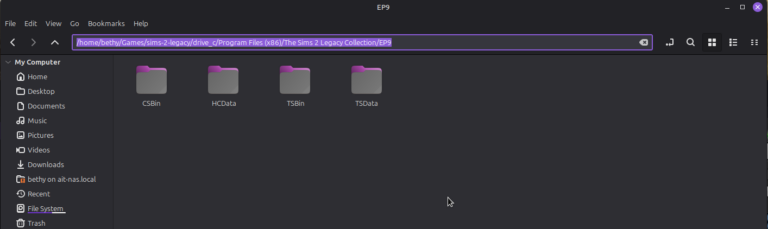
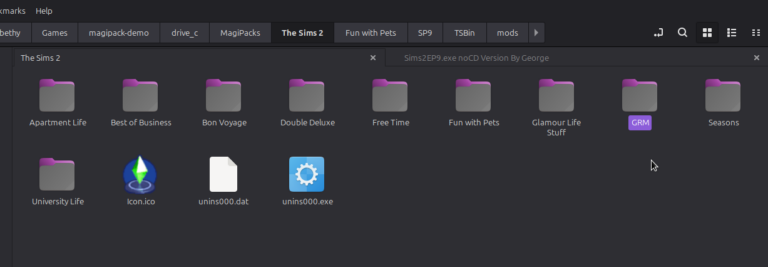
For Legacy Edition, get yourself the Sims 2 Extender by Lazy Duchess, which adds a lot of the RPC mods and features to Legacy Edition. For further tips on completing your Legacy Edition setup, see this post! You will need to install some files into your game install location, which for Legacy is going to be in EP9 instead of SP9 (see images), as well as putting one file into “Downloads”. You may need to run the game once to create your Documents / EA Games folder, and then create a “Downloads” folder. The file path will be: home/Games/ea-app/drive_c/users/[yourUsername]/Documents/EA Games/The Sims 2 – Just make sure you give your folder a capital ‘D’!

The following steps will help you to run any program inside of your Sims 2 Wine Prefix. Remember that Graphics Rules Maker is only required for Ultimate Collection – Legacy Edition *should* run fine without it!

(For more information on what a “wine prefix” is – see this post!)

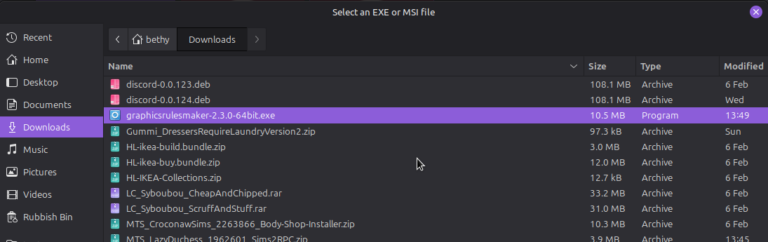
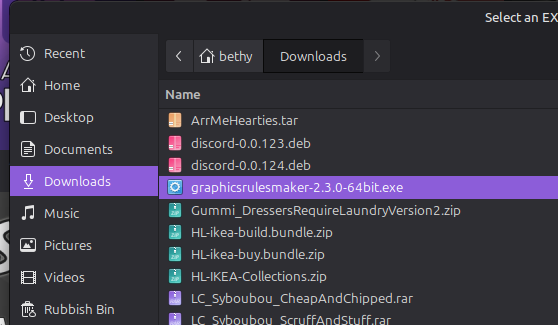
  1. Download the GRM installer. You can leave it sitting in Downloads or move it somewhere else, doesn’t matter!
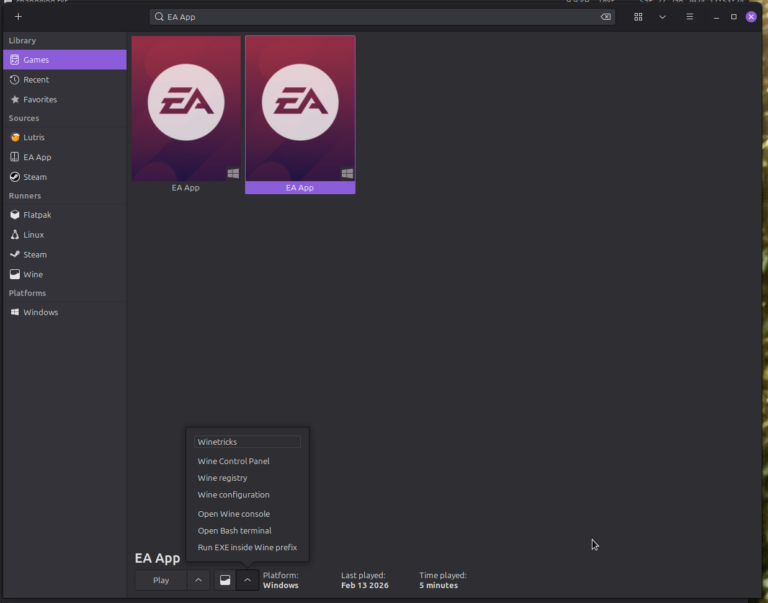
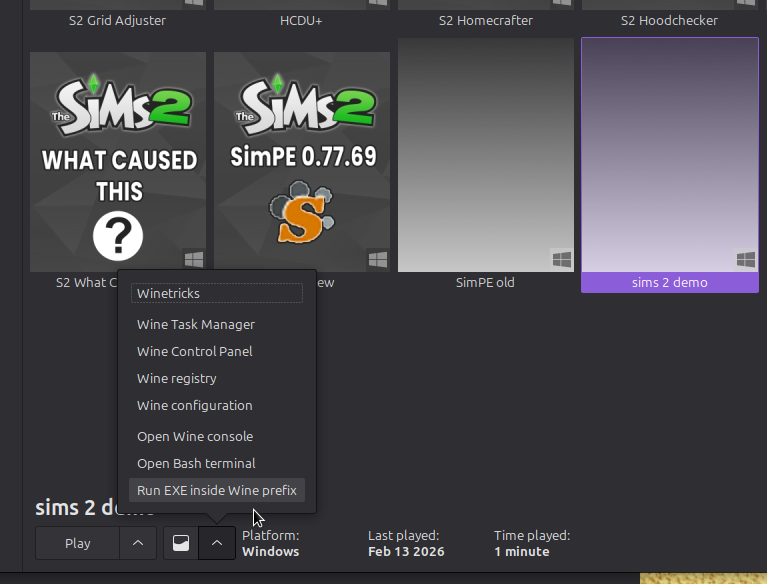
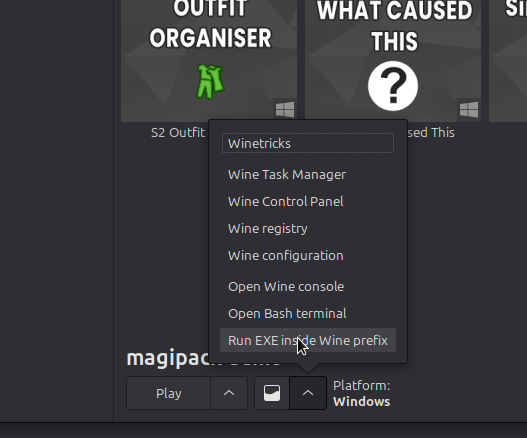
  2. Have the EA App selected in Lutris. Down the bottom of Lutris next to the “Play” button will be a small menu with a wine glass on it (or similar) and an ^ icon. Open that menu and select “run exe inside wine prefix”
  3. Navigate to wherever GRM is, and select the installer.exe
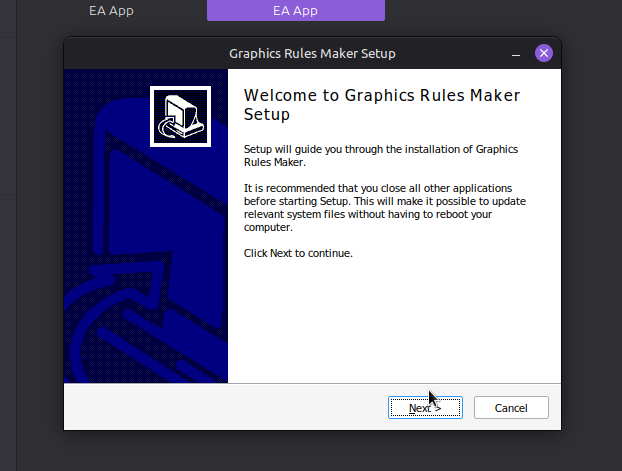
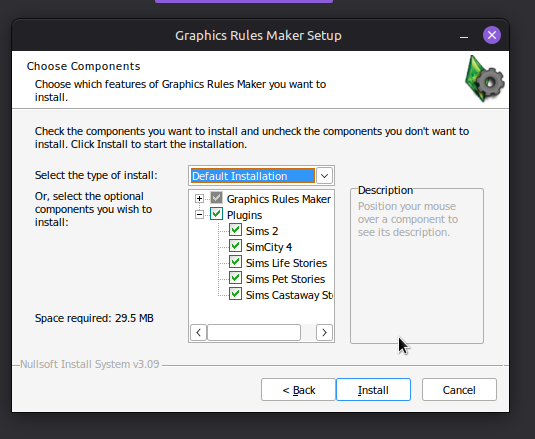
  4. The installer should then open, tick all the boxes and cross all the t’s and let the program install
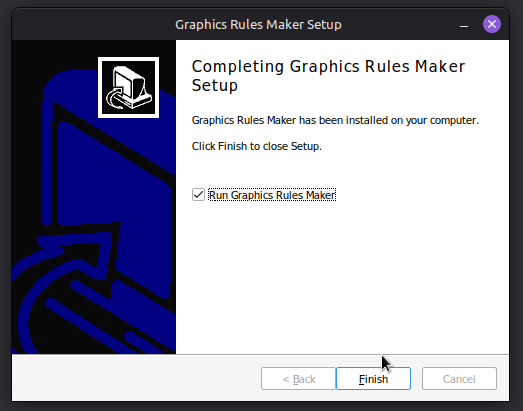
  5. GRM should open. If you get a pop-up about needing a cracked make sure you grabbed that in the last section 😉
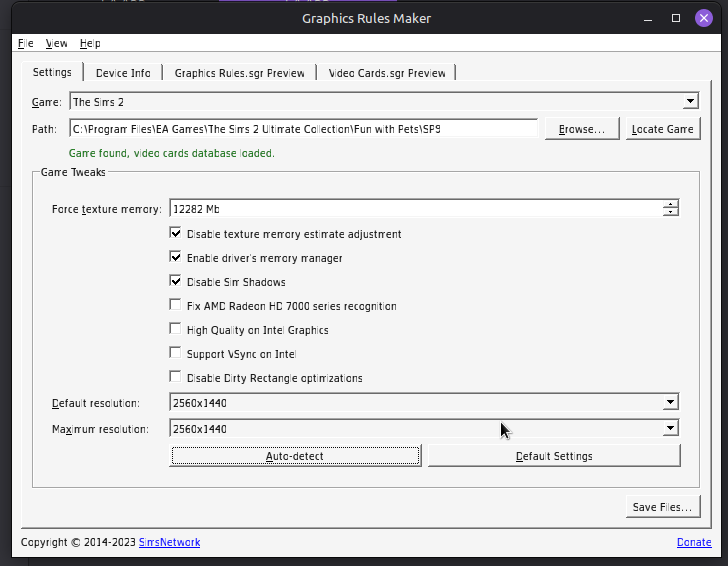
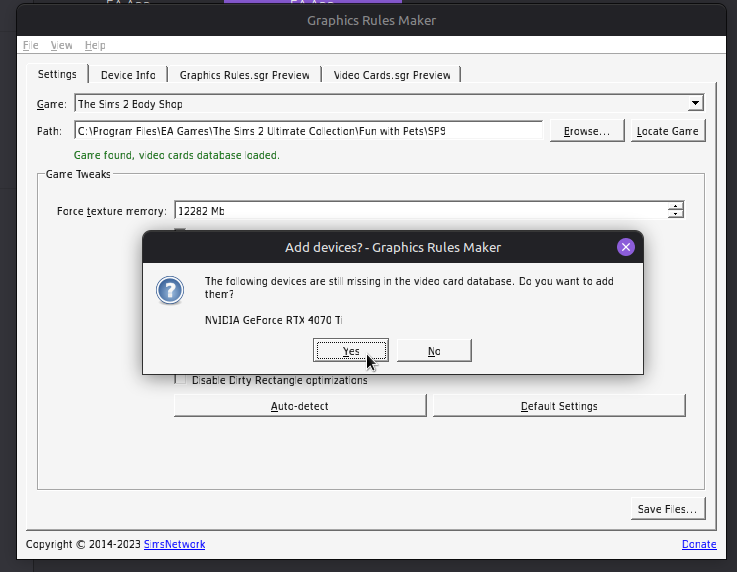
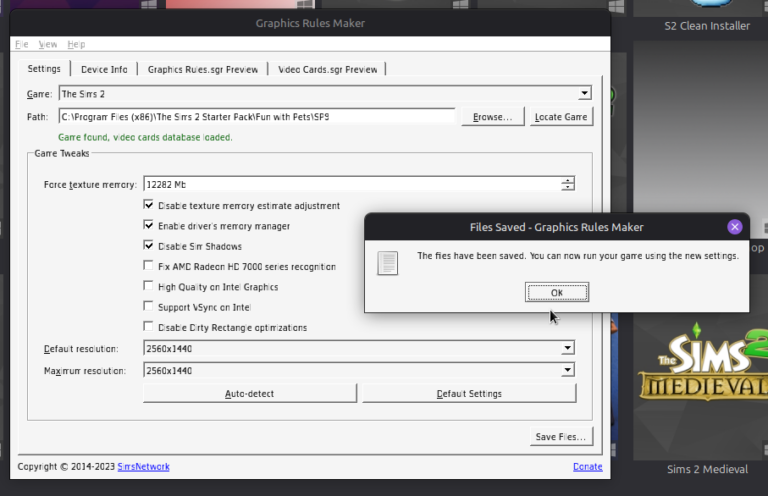
  6. Select “The Sims 2” from the drop-down menu, hit auto-detect and save. Repeat for “The Sims 2 Body Shop”.

Seriously, don’t stress about fiddling with the GRM settings. Just auto-detect and save and let Linux handle the rest!

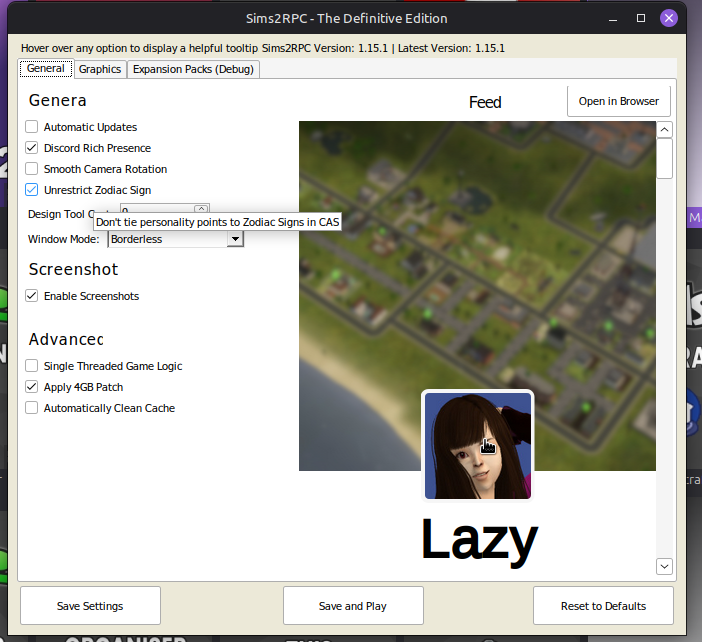
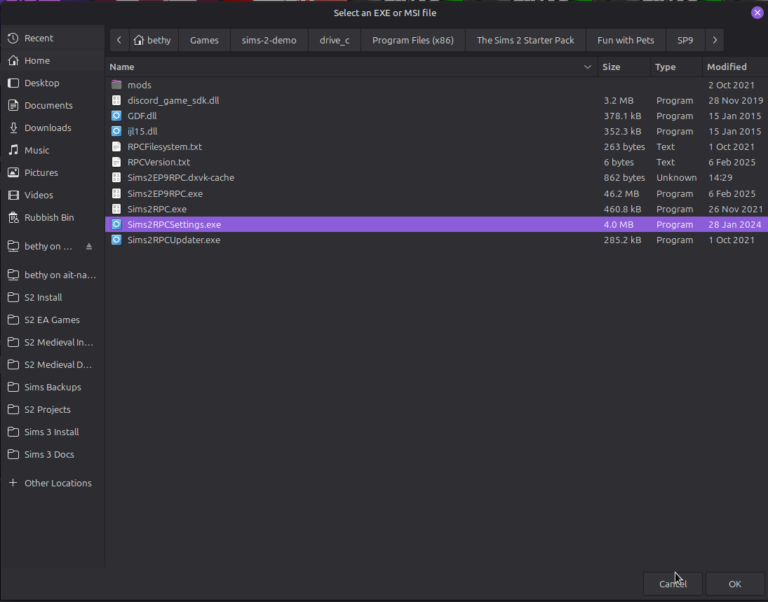
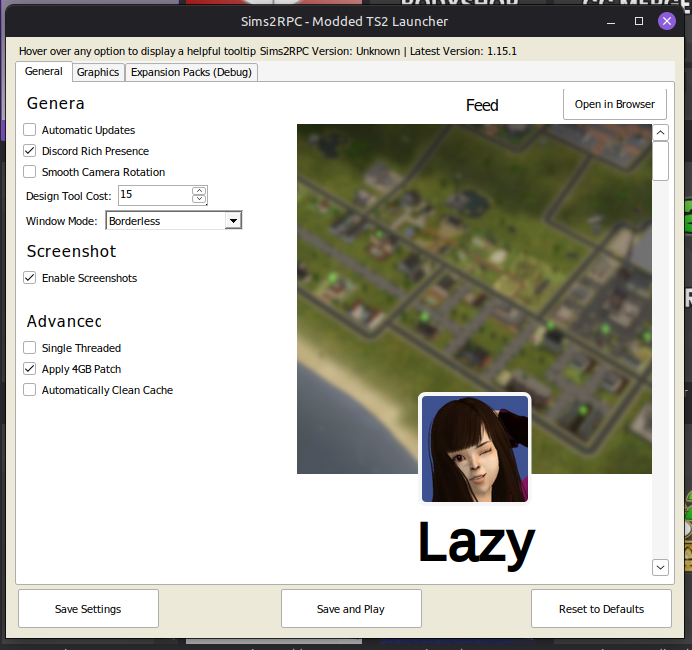
Since we installed RPC, you can also set up your RPC settings by following the same instructions for opening the Wine menu, selecting “run exe inside prefix”, and this time navigate to Sims 2 RPC settings .exe. Set your settings to your liking, and hit “save”.

Well done! You did it!

If your game isn’t working for any reason, please head to my troubleshooting page for FAQ’s. For more direct help, my Discord is the place to ask in the running-on-linux-tech-help channel!

Option 2: Use a copy of the game files, and OSABs Touch Up Installer - Fairly easy

  1. For this installation method, you are going to need two things:
  2. A “copy” of the game files (i.e. the contents of Program Files / TS2), and
  3. Osab’s Touch Up Installer.

It is none of my concern where you get these game files and I shall link to nothing directly here, but copies exist. It’s the internet. Ask around and ye shall receive.

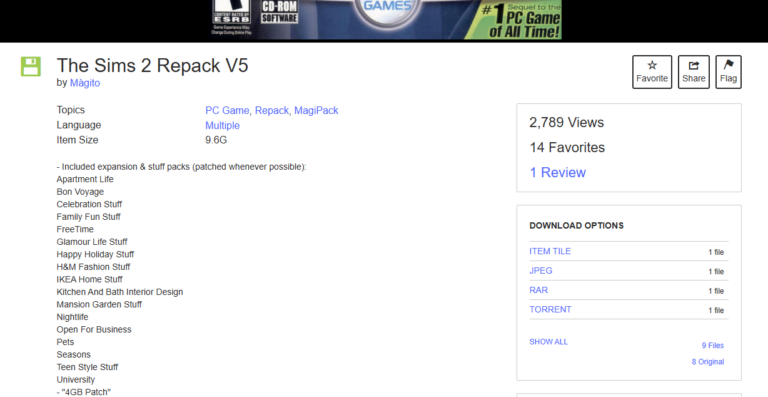
If you have Legacy Edition, do not try this method as it won’t work. This is for Ultimate Collection files only! If you’d like to be able to play Legacy Edition without the EA App, there is this great website called Fitgirl repacks… Anyway, moving on!

Firstly, place both Osab’s Installer and your game files anywhere you like – Home / Documents / Sims 2 Backups might be a nice place 😉 Then follow these steps!

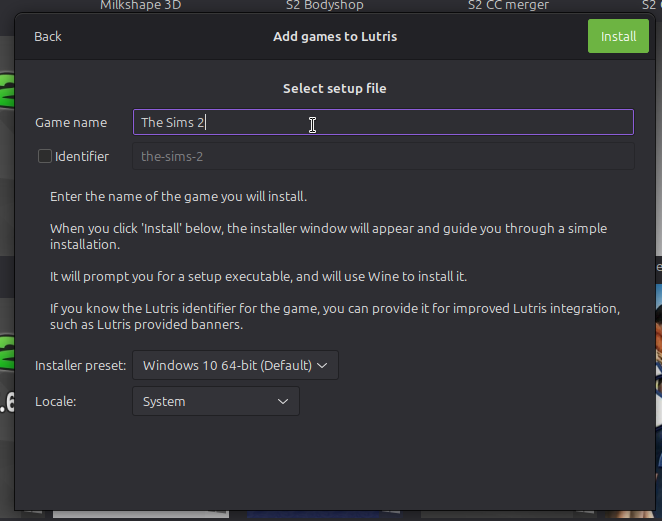
  1. In Lutris, select + in the top left corner and “install a windows game from an executable”
  2. Give the game a name – this will become your Wine Prefix (e.g. The Sims 2 or anything you like) then click install
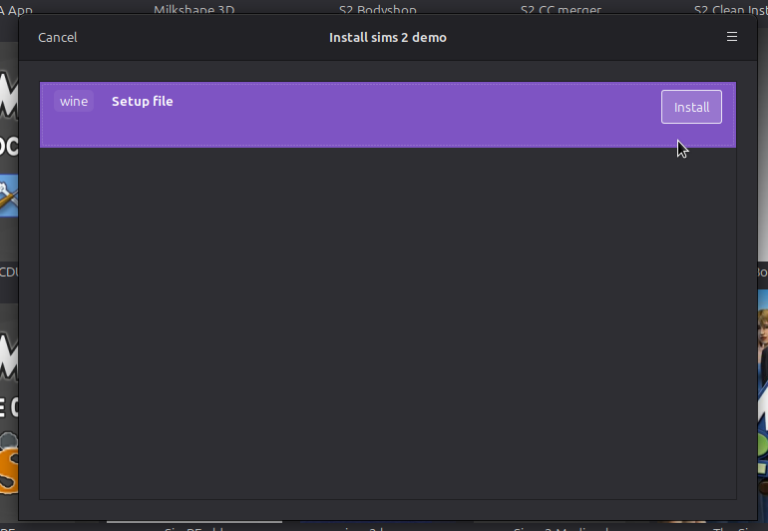
  3. Leave “wine setup file” as is and select Install
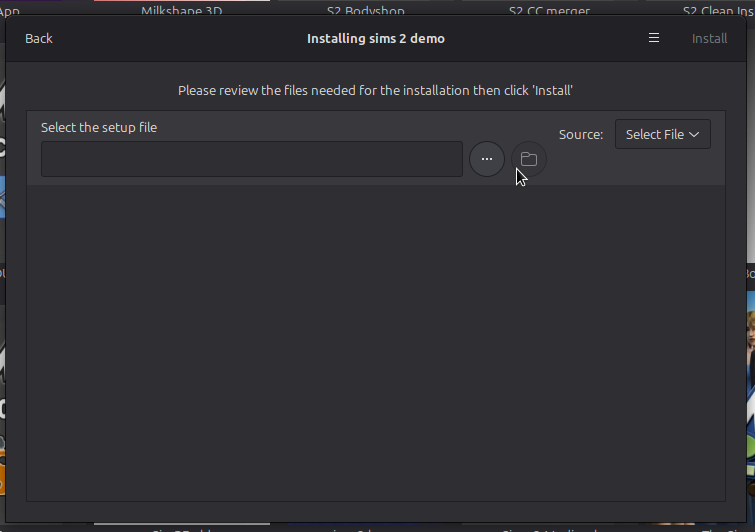
  4. If desired, select the install directory, or just leave as is and continue
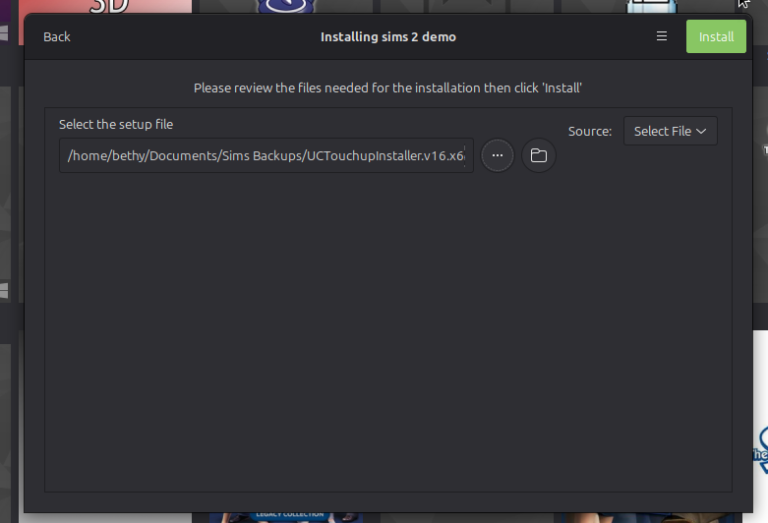
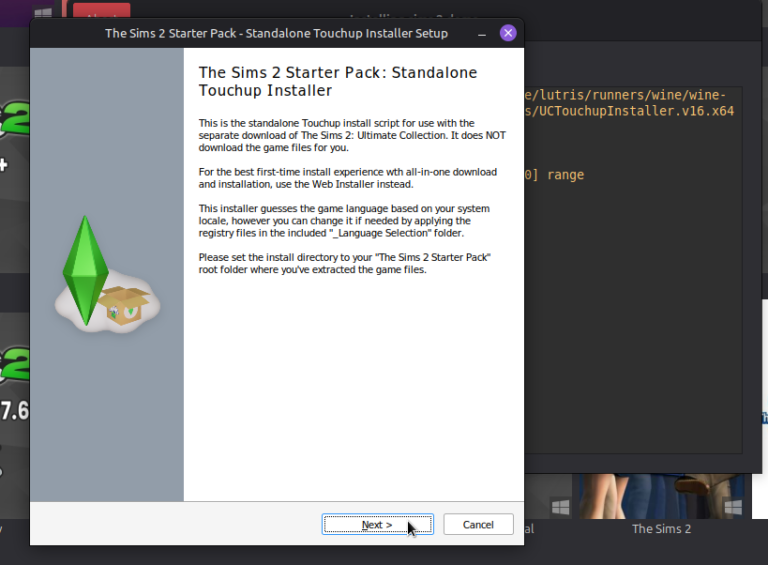
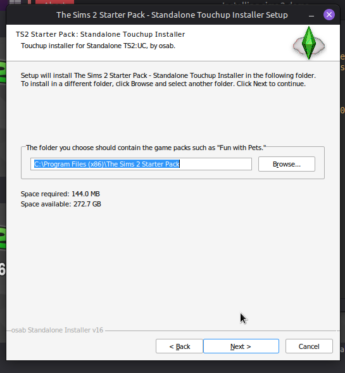
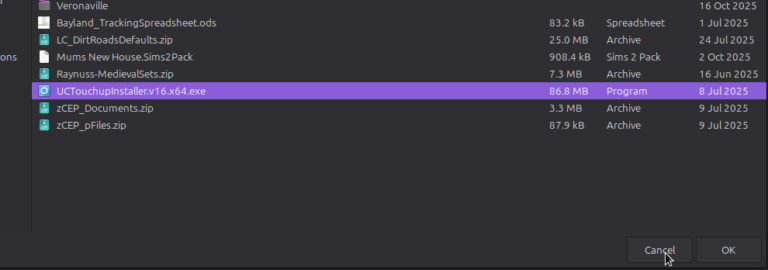
  5. Select the Setup File by clicking the 3 dots and browsing to the Touch Up Installer.exe
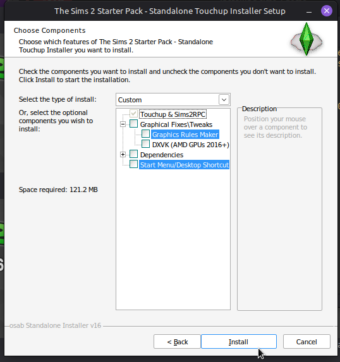
  6. In Osab’s installer, unselect to install dependencies, Graphics Rules Maker, and DXVK. And since we aren’t actually on windows, there’s no point having a desktop/menu shortcut.
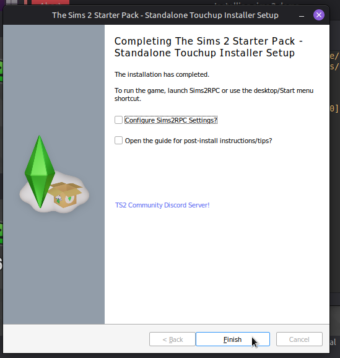
  7. Once the installer has completed, untick both boxes and select “finish”

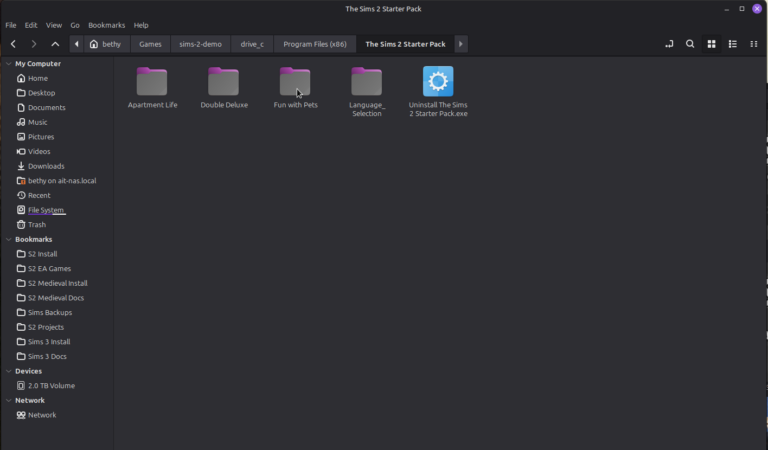
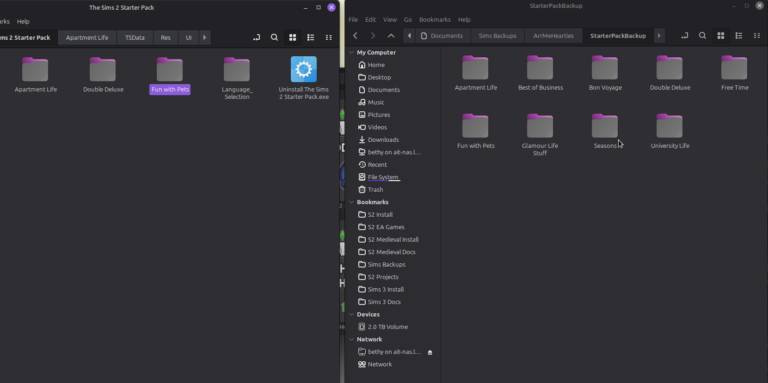
Your system now “thinks” that TS2 is installed but has none of the game files to actually run the game. Oh dear! Good thing we have a copy. Open this backup copy of the game files now in one window, and in another, navigate to home/Games/the-sims-2/drive_c/ProgramFiles(x86)/The Sims 2 Starter Pack.

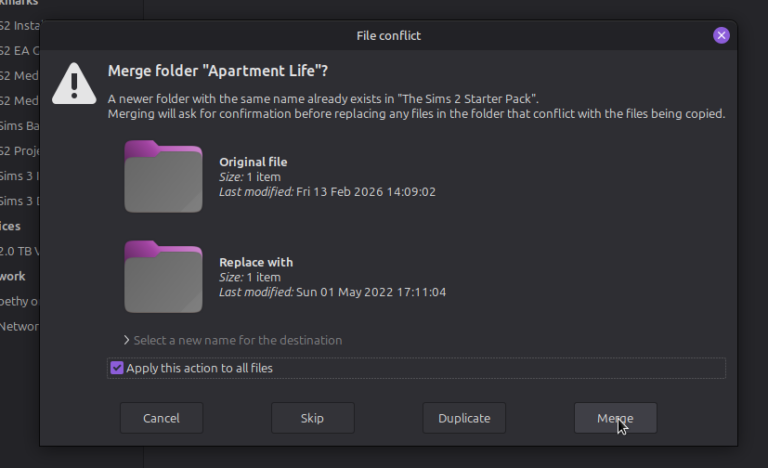
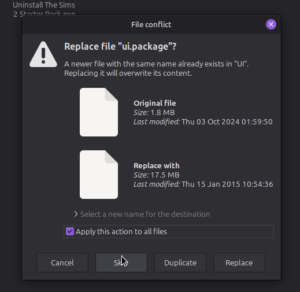
Move all of your game files inside. Be careful to not accidentally remove any RPC related files that OSAB’s installer has conveniently put there for you – merge the folders, but don’t replace any files.

Back in Lutris, right-click on The Sims 2 and select “configure”. Go to the “Game Options” tab and look at the “executable path” box. This needs to point to FunWithPets/SP9/TSBin/Sims2RPC.exe.

Your game should now be installed, and launch. Yay! Continue with setup by configuring your RPC settings, installing Graphics Rules Maker, and setting up your wine prefix with some handy DLL’s.

To run Graphics Rules Maker or RPC settings, we want to run an executable within the Sims 2 prefix.

The steps for Graphics Rules Maker are as follows:

  1. Download the GRM installer. You can leave it sitting in Downloads or move it somewhere else.
  2. Have The Sims 2 selected in Lutris
  3. Down the bottom of Lutris next to the “Play” button will be a small menu with a wine glass on it (or similar) and an ^ icon. Open that menu and select “run exe inside wine prefix”
  4. Navigate to wherever GRM is, and select the installer.exe
  5. The installer should then open, tick all the boxes and cross all the t’s and let the program install
  6. GRM should open. Select “The Sims 2” from the drop-down menu, hit auto-detect and save. Repeat for “The Sims 2 Body Shop”.

Seriously, don’t stress about fiddling with the GRM settings. Just auto-detect and save and let Linux handle the rest!

For RPC Settings, we once again find our handy little wine menu next to the “play” button in Lutris and select “Run exe inside prefix”, and this time navigate to C:/ProgramFiles (x86)/The Sims 2 Starter Pack/Fun With Pets/SP9/TSBin/RPCSettings.exe

Set your settings to your liking and hit “save”.

And, done!

If you run into any problems saying you need a cracked .exe, head here and grab this file, overwrite your sims2ep9.exe with it, and try again. If you have problems extracting the cracked .exe, try PeaZip from the software manager 🙂

Congrats! You did it!

If your RPC Settings do not apply in-game, check out my troubleshooting on Linux post.

Option 3: Use Magipack Installer - Easiest, in my opinion!

Magipack was a promising spiritual successor to Starter Pack until the site owner decided to no longer host or run his incredible archive of old games anymore. Luckily for us, the entire website was backed up onto the Internet Archive, and from there still exists one of the available internet sources for The Sims 2.

Again, no direct links will appear on my website to keep it safe and secure, but a Google Search for “Magipack Games Archive Sims 2” may prove fruitful. Otherwise head to ts2.crd.co and click the big red button, and let Linux handle the rest.

To install via this lovely and simple method, let the file download onto your computer and extract the contents to a backup location.

Then, follow these steps:

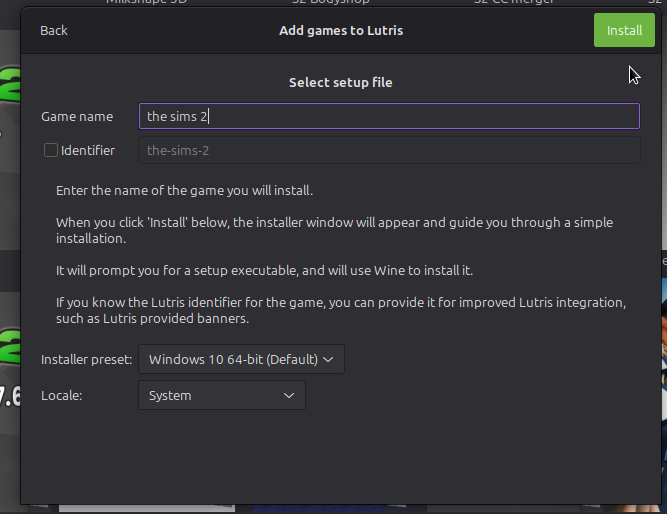
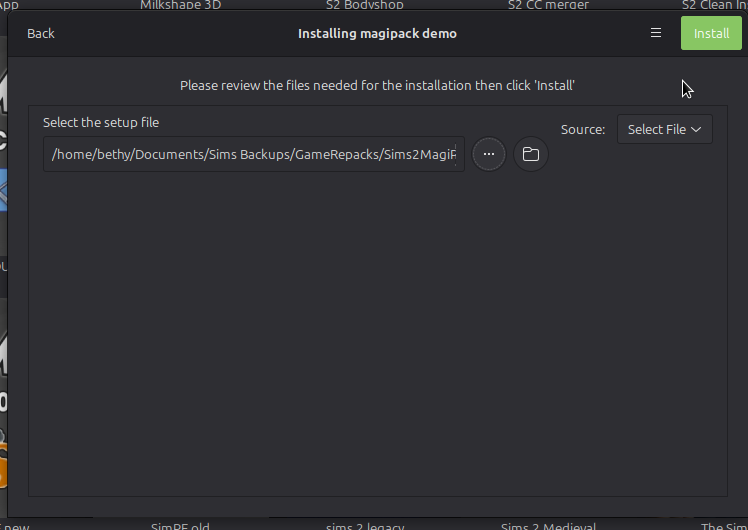
  1. In Lutris, select + in the top left corner and “install a windows game from an executable”
  2. Give the game a name – this will become your Wine Prefix (e.g. sims-2 or anything you like) then click install
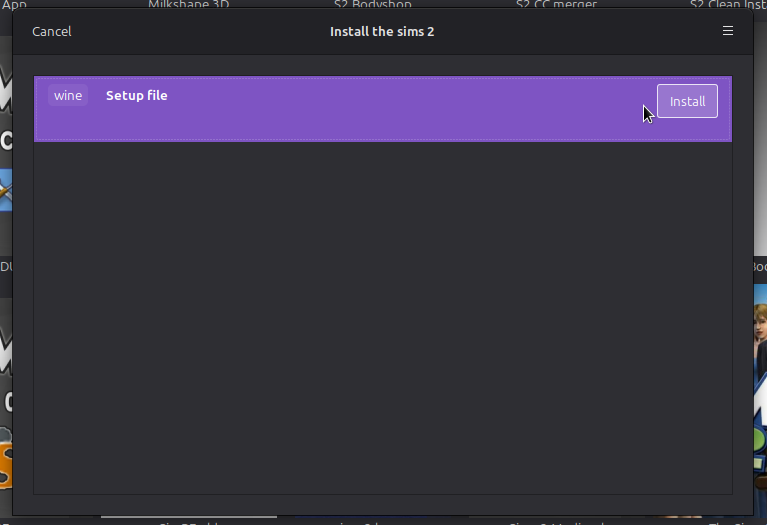
  3. Leave “wine setup file” as is and select Install
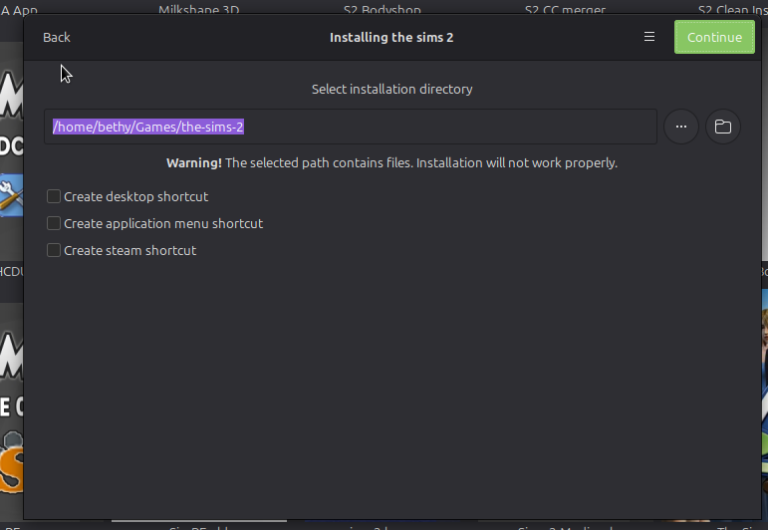
  4. If desired, select the install directory, or just leave as is and hit continue (recommended)
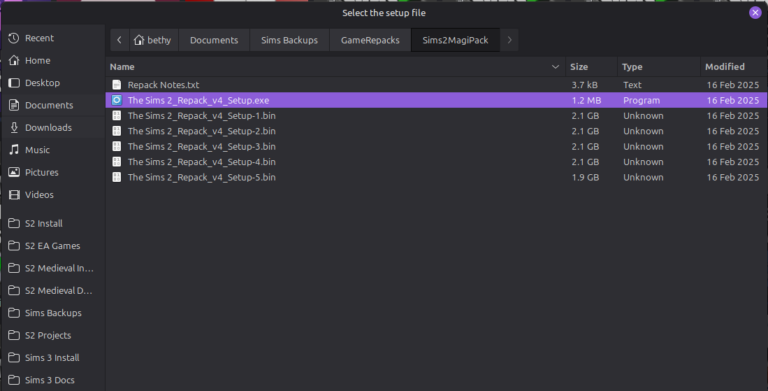
  5. Select the Setup File by clicking the 3 dots and browsing to The Sims 2_Repack_v4_Setup.exe
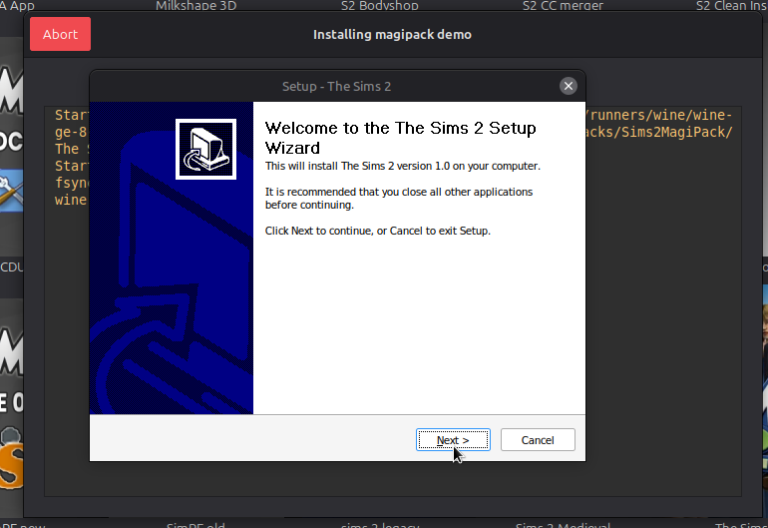
  6. Select Install, and when the installer wizard appears hit next
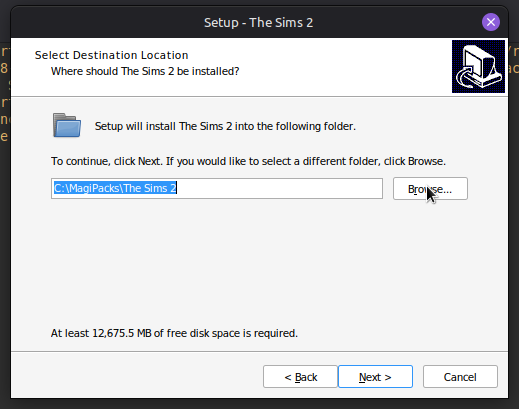
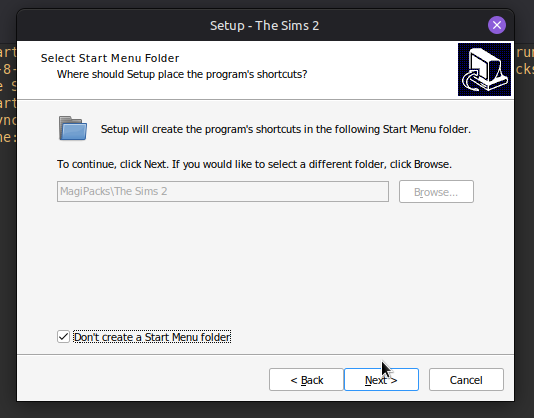
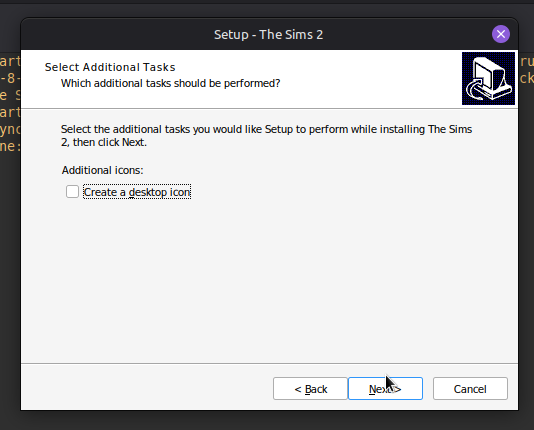
  7. Leave the directory as C:\MagiPacks, this is fine, but tick “Don’t create a start menu folder” and un-tick create a desktop icon, as we aren’t on Windows!
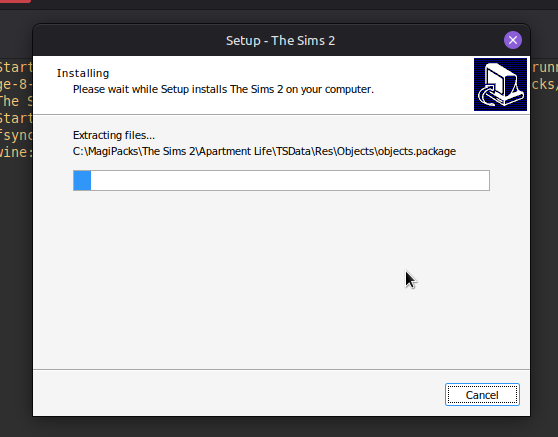
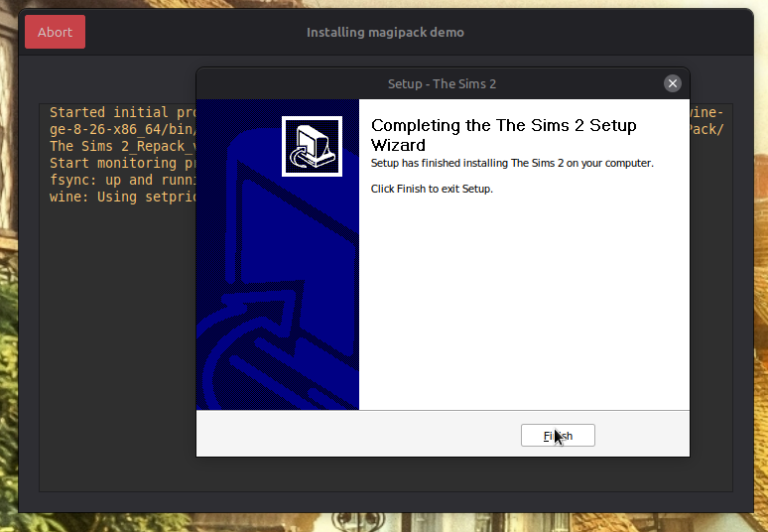
  8. Let the installer complete, then close!


Your game will be installed into drive_c/MagiPacks/TheSims2

Next, we need to fix RPC. Unfortunately MagiPack comes with some outdated files, so we need to re-download RPC from Github, overwrite all RPC files within drive_c\MagiPacks\The Sims 2\ Fun With Pets\TSBin, and then we can set up our RPC settings properly, yay. To do so,

  1. With Sims 2 Magipack version selected in Lutris, open the wine menu next to the “play” button and select “run exe inside wine prefix”
  2. Navigate to Fun With Pets / TSBin / RPC settings.
  3. RPC settings should open set your preferred settings and hit save.

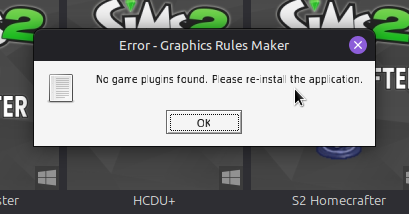
In my experience it is also beneficial to run Graphics Rules Maker on your Magipack install. GRM is included as part of the Magipack download and install, however in my experience it often fails to run, giving an error message that “no game plugins could be found”.

To solve this, just delete the Graphics Rules Maker folder from the Magipack install location, re-download it, and follow the same steps as above to run the installer exe inside your wine prefix. Select both The Sims 2 and The Sims 2 Body Shop from the drop-down menu, and just click “auto-detect” and save. Do not fuss over the memory GRM assigns your game. Auto-detect settings will be just fine!

Lastly, we need to make sure that Lutris is pointing at the right executable to run the game. To do so:

  1. Right-click The Sims 2 in Lutris and select “configure”
  2. On the second tab ‘game options’, double check the exe file path is correct. If not, change the executable file path to the Sims2RPC.exe
  3. Bonus step: On the third tab ‘runner options’ I recommend using ge-proton if it is available – more information on runners is available on this page under the heading “The Curious Case of GE-Proton”.

A bit tedious, I know... But so worth it!
Well done on getting The Sims 2 installed and running. Make yourself a whole pot of tea at this point, enjoy, and join the ranks of these other happy happy simmers playing their games on Linux… And remember, for any direct help, check my troubleshooting page and if you don’t find an answer there, Discord is the place to find me for an i-Tea support session!